A PLACE FOR YOUR NEXT HOME IDEA
Start with a goal.
Shape your space.
Plan a room, piece together a house, or explore a new look from a photo. Find the steps that fit what you want to do.
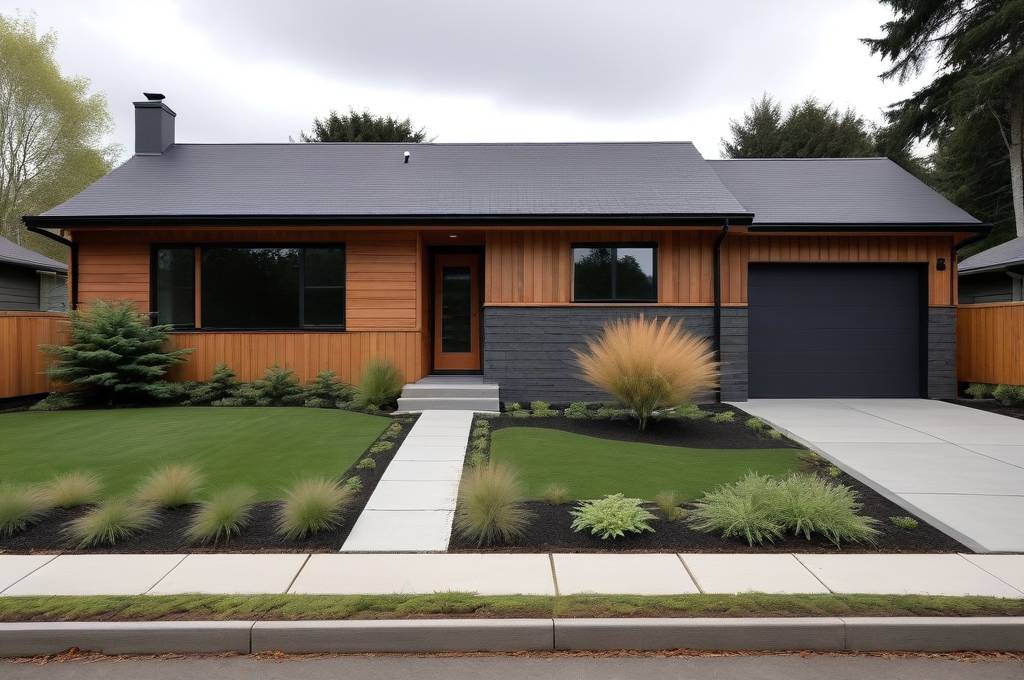 Explore exterior ideas Existing tool result · synthetic sample home
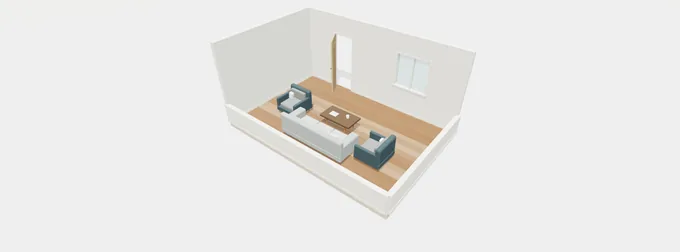 Make room for your ideas Actual editor previewPlan it. Explore it. Bring it together.
START HERE
What would you like to do?
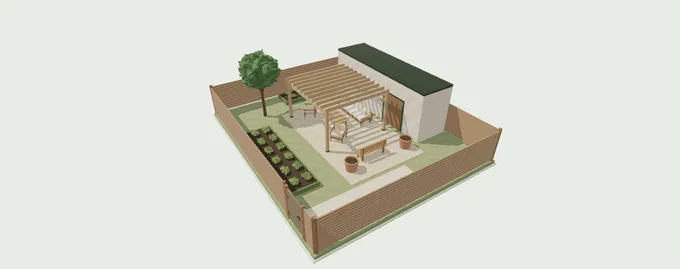
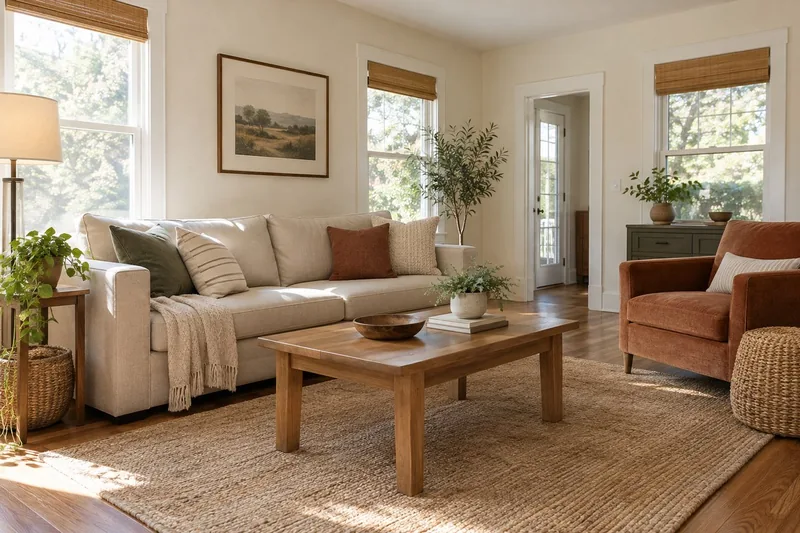
YOUR DESIGN WORKFLOWS
A clear next step, for every idea.
Explore available tools and preview what is coming next.
Plan & build
Shape rooms, houses and outdoor spaces in 2D and 3D.
Plan rooms & furniture
Arrange walls, doors and furniture, then explore your layout in 3D.
- Set up your space
- Arrange the layout
- Explore in 3D
Build a house exterior
Join a main house, wings and a garage, then shape the exterior details.
- Choose your starting shape
- Join the house modules
- Shape the exterior
Plan a garden layout
Arrange a patio, paths, planting and outdoor furniture around your home.
- Set up the site
- Arrange the outdoor space
- Compare your options
Redesign a space
Start with a photo and explore a new overall direction.
Redesign a home exterior
Explore colors, materials and styles from a photo of your home.
- Start with your home
- Choose a direction
- Create an exterior concept
Redesign an interior
Find a new overall style for a room while keeping its familiar structure.
- Prepare your room photo
- Set the overall direction
- Explore an interior concept
Furnish an empty room
Explore furniture, color and atmosphere for an unfurnished space.
- Prepare the empty space
- Arrange furniture and atmosphere
- Review the layout
Design a patio living area
Explore an outdoor space for dining, relaxing or spending time together.
- Start with the patio
- Choose how to use it
- Explore a patio concept
Redesign a front or back yard
Explore a fresh landscape direction from a photo of your outdoor space.
- Choose the area
- Describe the changes
- Explore a garden concept
Change a detail
Focus on the colors and objects you want to change.
Change a color
Try a new color on a selected wall, surface or object.
- Choose the current image
- Mark the target
- Explore the new color
Replace an object
Try another sofa, table, fixture or selected object in its place.
- Choose the current image
- Identify the old and new object
- Explore the replacement
Add furniture or decor
Explore a new object in a specific place in your space.
- Choose the current image
- Choose the object and position
- Explore the addition
Remove clutter & repair
Clear selected objects and inspect the background they leave behind.
- Choose your starting image
- Mark the objects
- Explore a cleaner space
Render & refine
Explore how a sketch or model could look as a finished design.
Turn a sketch into a concept
Explore a finished design from a clear perspective sketch.
- Choose a perspective sketch
- Describe the design intent
- Render the concept
Render a model view
Explore realistic materials and lighting from a chosen 3D view.
- Confirm the model view
- Choose materials and lighting
- Explore the rendered view
Refine an existing render
Explore a more polished treatment of an existing design image.
- Choose the design image
- Define the improvements
- Create a refinement candidate
Present your ideas
Bring selected designs together for review and sharing.
Explain a design with diagrams
Organize confirmed design ideas into a clear visual explanation.
- Choose the design
- Confirm the information
- Compose the explanation
Create a presentation board
Bring selected photos and design concepts together with clear notes.
- Choose your project images
- Arrange the board
- Review and create
Make a design presentation video
Present selected design images in a planned visual sequence.
- Choose the images
- Set the sequence
- Create the presentation
Enhance image resolution
Prepare a larger version of a selected design image.
- Choose the original
- Choose the output
- Create an enhanced version
PICK UP WHERE YOU LEFT OFF
Your ideas have a home.
FROM AN IDEA TO A DIRECTION
One step at a time.
- 01
Choose your goal
Find a workflow for your space, from a room layout to an exterior concept.
- 02
Shape your idea
Edit a layout yourself or prepare a photo and the changes you want to explore.
- 03
Take the next step
Review the current version. Add an optional refinement when you need it.
- 04
Keep it together
Save your options, compare details and bring selected images into a board.
Browsing workflows, comparing saved results and downloading existing images use no generation credits. New generation or presentation tasks show their cost before you submit.
A LITTLE INSPIRATION
One home. Two directions.
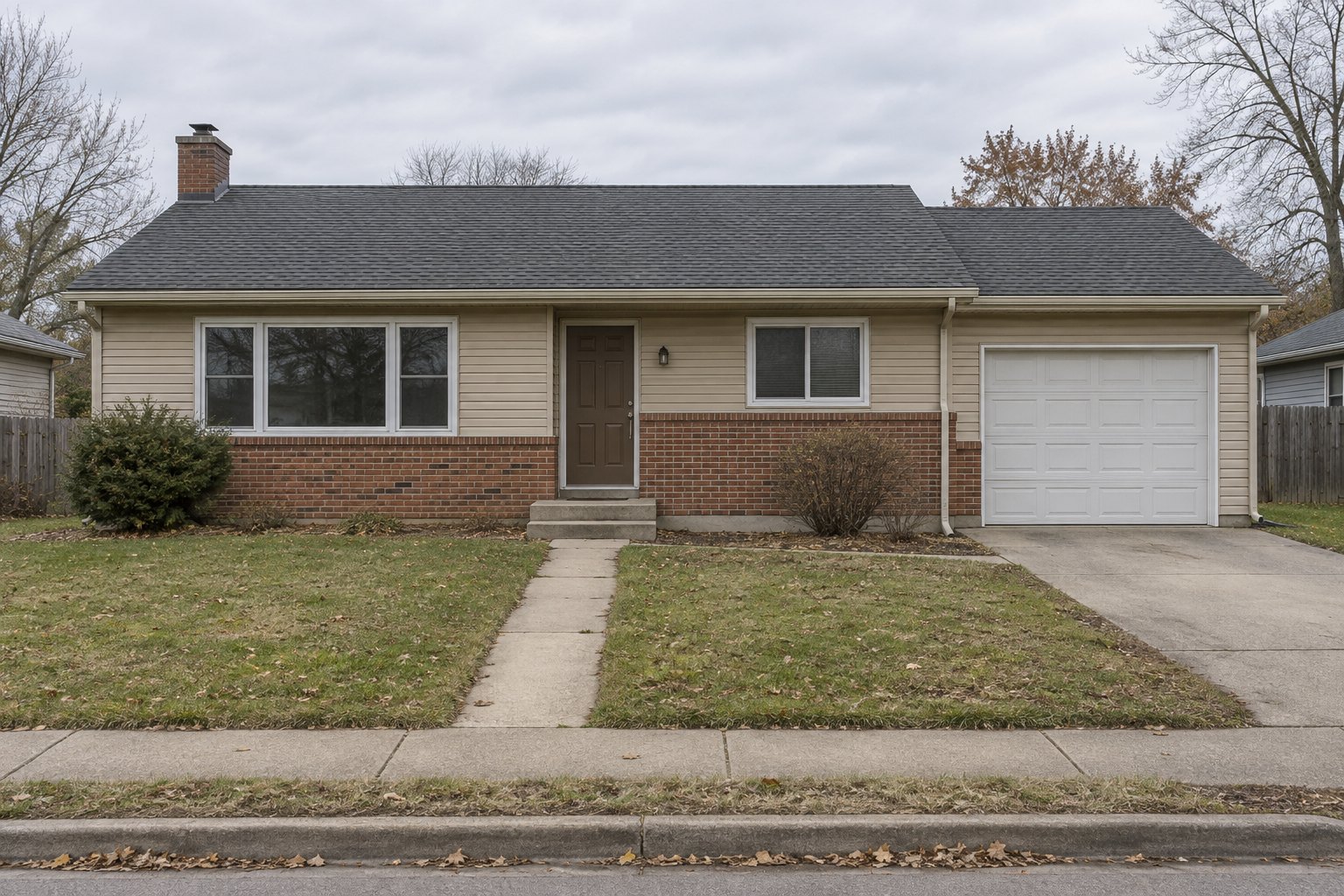
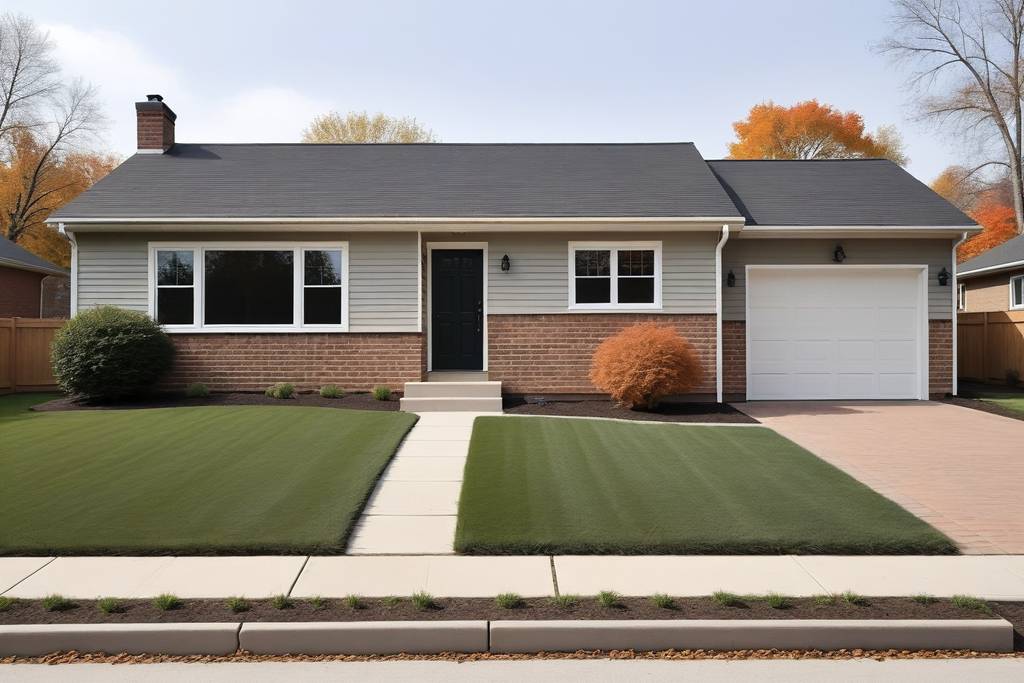
A fresh gray palette with warm brick. AI also changed window, paving, and landscape details.
The original home is AI-generated. Both results were produced with our exterior design tool. These are visual concepts, not completed renovations or construction plans.
THE DESIGN NOTEBOOK
Make your next decision clearer.
Explore a ranch exterior makeover
Prepare a useful brief and compare restrained and bolder directions.
Read the guideCompare brick and siding colors
Build a palette around the surfaces you want to keep.
Read the guideChoose between exterior design options
Use consistent criteria, clear notes and a concept board.
Read the guideWhat can I use today?
The room and garden editors include editable 2D layouts, 3D previews and downloads. The house builder is part of the garden editor. Exterior Design and project presentation tools have their own studios. Each workflow shows whether it is available, a preview or in development.
Does every workflow generate an image?
You can finish a layout, compare options or download saved work without generating. An AI or presentation step is a separate action with a cost shown before you submit. Previewing the steps does not run them.
Can I turn a 2D plan into an effect image?
The floor-plan editor builds a linked 3D preview from your manual layout. You can choose a view and export it. Directly continuing from that view into AI rendering is being connected; model rendering is currently a preview.
How do projects and credits work?
Google sign-in gives you one account and a shared credit balance. Save designs in your projects, compare options and add notes. A new presentation board costs 2 credits after you review its quote; downloading an existing board is free. Credit purchases are not open yet.